
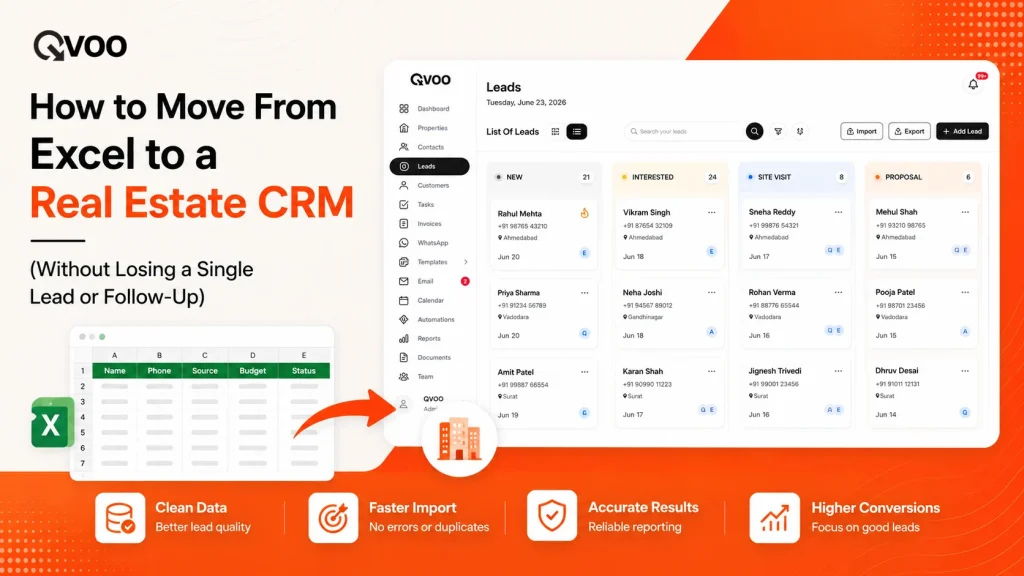
You have three years of leads sitting in one Excel file. Every buyer, every budget, every ‘call again after Diwali’ note is in there somewhere. You know a CRM would make life easier but that file is your entire business, and the fear is simple: what if you move it and something breaks?
That fear keeps a lot of good brokers on spreadsheets far longer than they should be. So let’s remove it. Moving your leads from Excel to a real estate CRM is not a risky, all-or-nothing jump. It’s a short, ordered process clean, map, import, check, rebuild and if you do it in that order, you don’t lose a single lead or follow-up.
Here’s the exact playbook.
First, understand what you’re actually moving
A broker’s spreadsheet is not just a list of names. It’s four different kinds of information tangled into one file, and each moves a little differently:
- The people – name and mobile number. This is the core. Everything else attaches to it.
- The requirement – what they want: 2 or 3 BHK, budget range, locality, buy or invest, ready or under-construction.
- The source – where the lead came from: 99acres, MagicBricks, a reference, a hoarding, a Facebook ad.
- The status and next step – where they are in your pipeline, and the follow-up you promised.
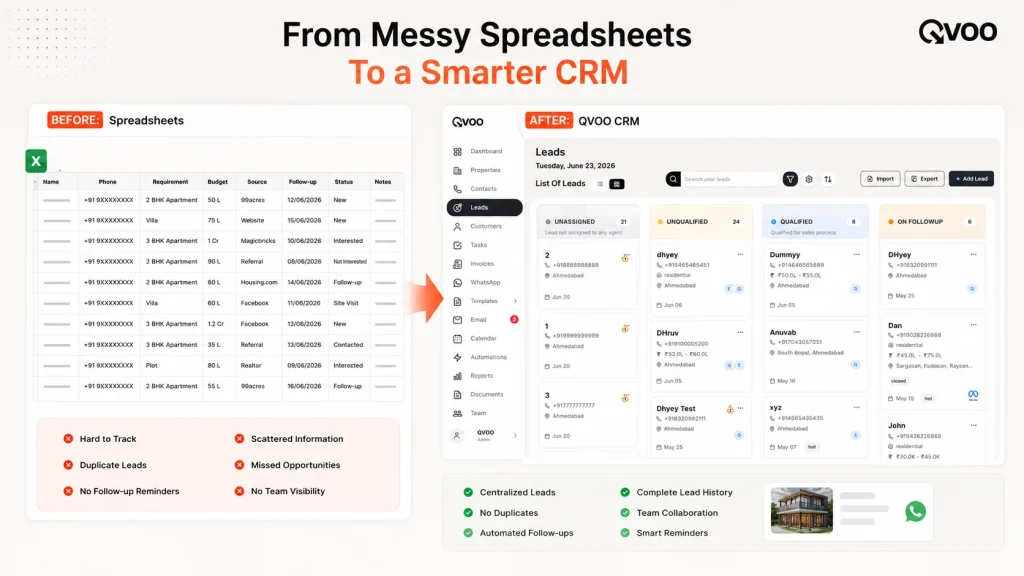
When people say they lost data in a migration, they almost always mean one of two things: duplicates got created, or the follow-ups didn’t come across and the pipeline went quiet. Both are completely avoidable. The steps below are built around preventing exactly those two problems.
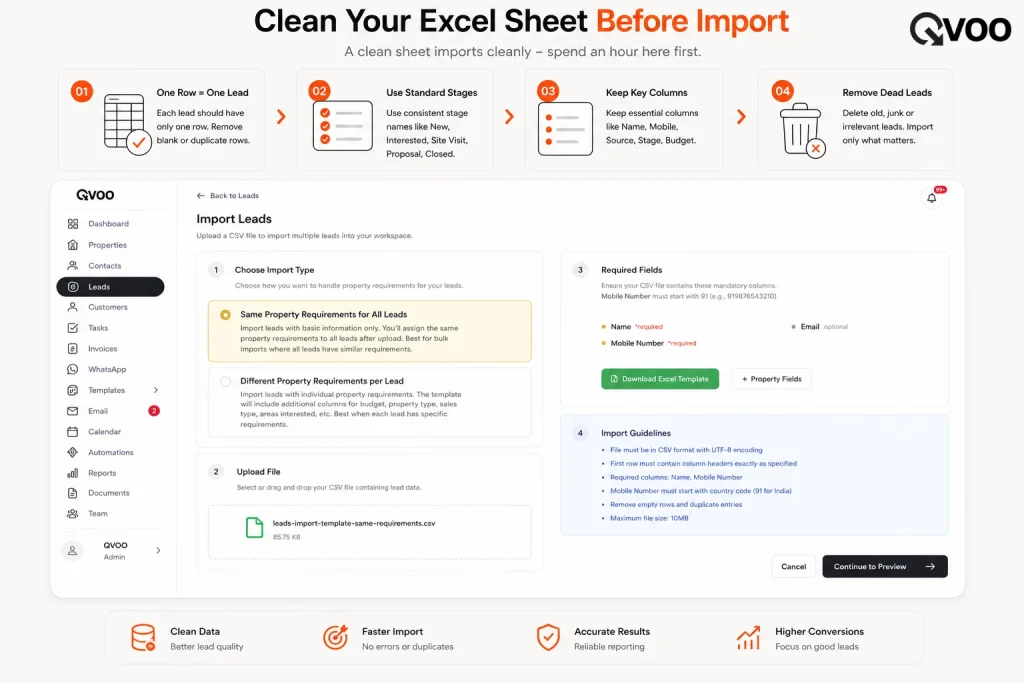
Step 1 : Clean the sheet before it goes anywhere
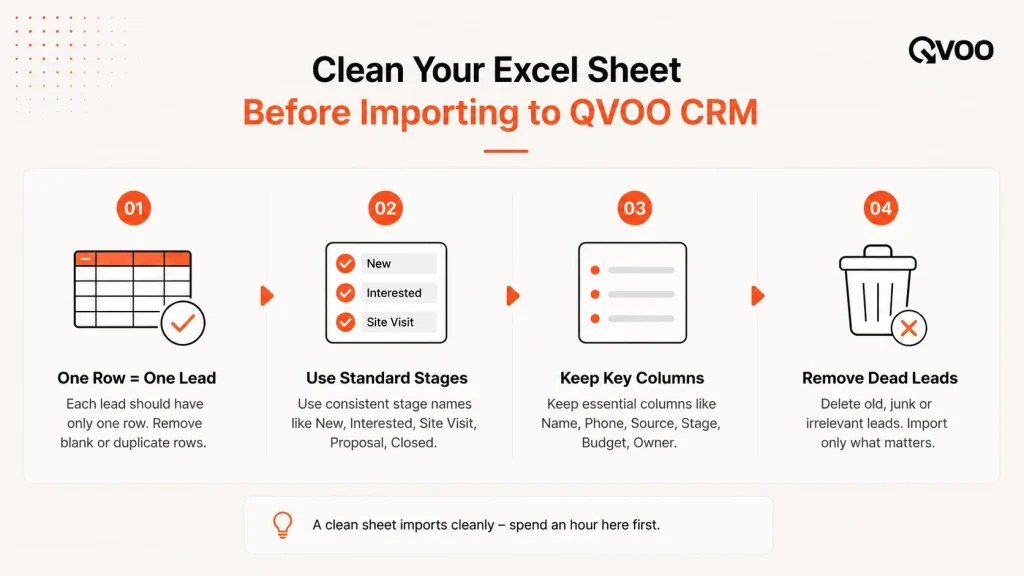
The golden rule of any migration: a CRM will faithfully import your mess if you give it a mess. Spend an hour on the file first and you save yourself a week of confusion later.
Open your Excel file and fix these:
- One row per lead. Merged cells, blank separator rows, and two buyers squeezed into one row all confuse the import. Flatten it so every row is one lead.
- One clear header per column. Rename vague headers to plain labels: Name, Mobile, Budget, Locality, Requirement, Source, Stage, Next Follow-up, Notes. You’ll match these to CRM fields in Step 3, so clarity here pays off.
- Standardise the obvious stuff. Pick one way to write budget (say, all in lakhs), one set of stage names (Enquiry, Site Visit, Negotiation, Booked, Dead), and one way to write locality.
- Delete the truly dead weight. A lead who went cold two years ago and never picked up doesn’t need to clutter your fresh database. Archive those rows in a separate tab instead of importing them.
Don’t stress about phone-number formatting. Whether a number sits as 98765 43210, +91 98765 43210, or 919876543210, Qvoo standardizes every number to the same +91 format as it saves so your buttons to call and message a lead work straight away.
Step 2 : Save one master backup
Before you import anything, save a copy of the cleaned file somewhere safe and don’t touch it. Name it something obvious like Leads-master-backup-11-July.xlsx.
This is your safety net. If you spot a mapping mistake a week later, the original file is right there to re-import from. It costs you thirty seconds and turns every step that follows into a low-risk one.
Then save your working copy as a CSV file (in Excel: File → Save As → CSV). CSV is the universal format every CRM reads, and it’s what Qvoo’s lead import expects.
Step 3 : Map your columns to CRM fields
This is the step where migrations quietly go wrong, so it’s the one worth slowing down for. Your sheet calls a column Budget; the CRM needs to know that means the budget field. Your Source column needs to land in the source field, not in notes.
In Qvoo, the import lets you map each column in your file to the matching field in the CRM. Because lead fields are configurable, your real-estate columns have a proper home rather than being dumped into one big text box:
- Requirement and Budget map to fields you can later filter and match on.
- Source maps to the source field so you keep knowing which portal or reference each buyer came from, and can pull reports by source afterwards.
- Stage maps to your pipeline stage, so leads arrive already sorted into Enquiry, Site Visit, Negotiation and so on.
- Anything without a natural home a stray remark, a reference name goes into notes rather than being lost.
Map thoughtfully once, and every buyer arrives as a proper, searchable lead instead of a flat contact.
Step 4 : Test with a small batch first
Never import 2,000 leads on your first try. Take 20 to 30 rows, import just those, and open a few of them in the CRM.
Check the boring things: Did the budget land in the budget field? Is the source correct? Did the mobile number come through and format properly? Is the stage right?
If something’s off, you fix the mapping not 2,000 records. This five-minute test is the difference between a clean migration and an afternoon of cleanup. Qvoo validates the file and flags problems before anything is saved, so you catch issues at the door rather than after they’re inside.
Step 5 : Import the full file and let it catch duplicates
Once the sample looks right, import the rest. Qvoo handles leads in bulk you can bring in up to 10,000 in a single import so most brokers’ entire history moves over in one go.
Here’s the part that protects you from the classic migration headache: duplicates. The same buyer often sits in your sheet twice once from a 99acres enquiry, once from a walk-in. When the import sees a mobile number that already exists, Qvoo doesn’t silently create a second copy. It flags it as ‘Already in the CRM’ and lets you decide open the existing lead, or record it as a re-inquiry against that same buyer. One buyer stays one buyer, with one history.
Step 6 : Give every lead an owner
In a spreadsheet, who’s handling this lives in someone’s head. In a CRM, it should live on the record.
After the import, assign leads to your team. You can assign them one by one, or bulk-assign a whole batch at once for example, hand every South Bengaluru lead to one agent. Assignment isn’t just tidy; it’s how accountability works. When an agent only sees the leads assigned to them, nobody double-calls the same buyer, and nothing sits in a shared pile with no owner.
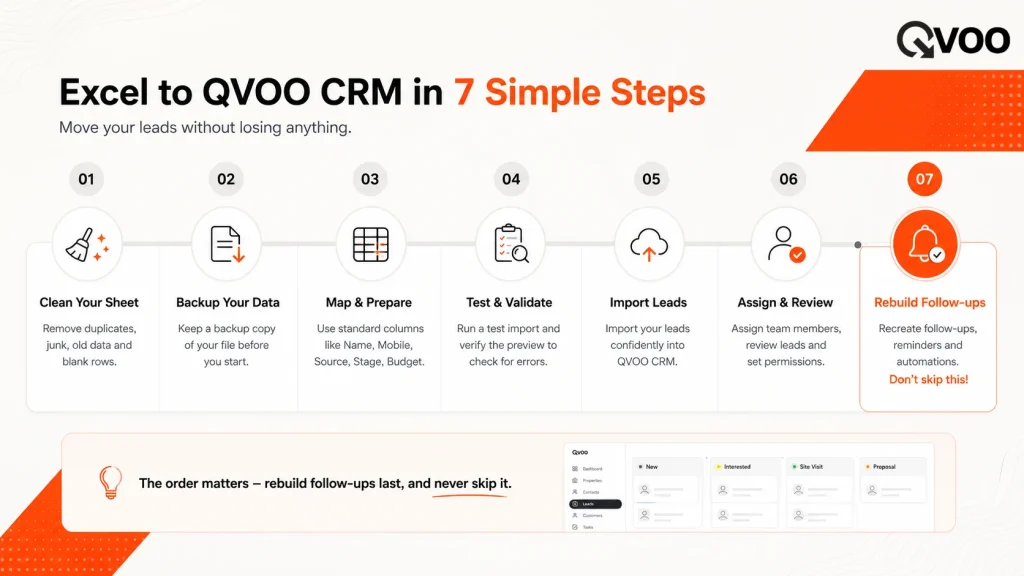
Step 7 : Rebuild the next follow-up (this is what saves the pipeline)
This is the step most migration guides skip, and it’s the one that actually matters. Your Excel file had a Next Follow-up column full of promises call Sharma ji on the 14th, site visit pending. If you import the leads but not the next step, your pipeline goes silent the moment you switch, and warm buyers go cold.
So don’t skip it. For every active lead, add the next follow-up as a real task. In Qvoo you add a follow-up straight from the lead with a date, time and note it lands on your Calendar and reminds you when it’s due. Qvoo keeps one open next step per lead, so you always know the single next action for every buyer, and an overdue follow-up stays visible instead of quietly disappearing.
Work through your warm and mid-pipeline leads first and book their next step. Within an hour, your whole active pipeline has a live to-do list and you’ll never again wonder who you were supposed to call today.
A realistic timeline
For most Indian brokerages this is a half-day job, not a week. Cleaning the sheet is the slow part budget an hour or two. The test import is five minutes. The full import runs in minutes. Assigning owners and booking follow-ups for your active leads takes another hour or so. A single agent with a few hundred leads can be fully live the same afternoon; a larger agency with several thousand records should plan a focused day and do it when the phones are quieter.
Where Qvoo fits
Qvoo CRM currently helps real estate teams manage enquiries, follow-ups, property leads, sales pipeline and bookings from one place built on a scalable platform with a broader CRM vision for more industries in the future. For a broker leaving Excel, the parts that matter on day one are the ones that make the move safe: a bulk CSV import that maps your columns to real fields and checks the file first, phone numbers standardised automatically, duplicate buyers caught instead of copied, one-tap and bulk assignment so every lead has an owner, and follow-ups on a calendar that actually remind you. From there, the same enquiries you just imported can be matched to your listings, followed up on WhatsApp Business, and tracked through your pipeline but the migration itself is the part you were worried about, and now it’s a checklist.
The leads have been sitting in that spreadsheet doing nothing new for you. Give them a home where the next follow-up is booked, the owner is clear, and no buyer is counted twice and the same database that felt like a burden starts working like a pipeline. Book a Qvoo demo and bring your spreadsheet along.
Ready to Upscale your Business?
If you need to take your business from small scale to large scale.
Explore how QVOO works with your existing sales pipeline.
Frequently asked questions
Can I import my Excel sheet directly into a real estate CRM?
Yes you save your Excel file as a CSV first (File → Save As → CSV), then upload it. CSV is the universal format CRMs read. In Qvoo you upload the CSV, map your columns to lead fields, and the leads come in as proper, searchable records rather than a flat list.
Will moving from Excel to a CRM create duplicate leads?
Not if the CRM checks for them. When Qvoo’s import sees a mobile number that’s already in the system, it flags the lead as ‘Already in the CRM’ and lets you decide what to do instead of silently creating a second copy so one buyer stays one buyer with one history.
How do I not lose my follow-ups when I switch?
Import your leads first, then rebuild the next step for each active lead as a real follow-up with a date and reminder. This is the step people skip, and it’s why some pipelines go quiet after a migration. In Qvoo you add a follow-up from the lead and it lands on your Calendar with a reminder, so nothing slips.
How many leads can I import at once?
Qvoo imports leads in bulk up to 10,000 in a single import so most brokers move their entire lead history in one go rather than in small batches.
How long does it take to move from Excel to a real estate CRM?
For most Indian brokerages it’s a half-day job. Cleaning the spreadsheet takes an hour or two, the test and full import run in minutes, and assigning owners plus booking follow-ups for active leads takes another hour. A larger agency with thousands of records should plan a focused day.
Do I need to reformat all my phone numbers before importing?
No. Qvoo standardises every mobile number to the same +91 format as it saves, so numbers written as 98765 43210, +91 98765 43210 or 919876543210 all end up consistent and the call and WhatsApp buttons work straight away.